Before setting up a new BitBox02, inspect its packaging and use the official BitBoxApp for the automatic authenticity check. These checks help detect visible interference and counterfeit devices, but cannot rule out every physical modification of a genuine device.
If the packaging or device appears altered, something is missing, or the BitBoxApp displays an authenticity warning, stop and contact BitBox Support before continuing. Do not set up a wallet or transfer funds to a device you suspect has been tampered with.
Inspect the packaging before opening it
Check the outer shipping parcel and the clear vacuum-sealed bag inside. A dented or partly opened shipping box does not by itself show that the device was tampered with, but missing contents or damage that also affects the inner bag require a check with Support.
Before opening the vacuum bag, inspect these features:
- Sealed edges: The gray pattern should run continuously around all four sealed edges. Its exact position can vary slightly between bags.
- Bag and seams: Look for cuts, punctures, tears, opened seams, an interrupted seal, or signs of resealing. If you see any of these, do not open the bag or connect the device; contact BitBox Support.
The bag can lose some vacuum during shipping and no longer fit tightly around the inner box. Looseness or a small amount of air alone is acceptable when the bag and all sealed edges remain intact, with no signs of opening or resealing. If you are unsure whether the bag is intact, leave it unopened and ask Support.
The images below show the packaging and gray-patterned seal on different BitBox02 editions. Use them to identify these features, rather than to judge how tightly the plastic fits around the box. Even packaging that looks normal does not prove that the device is genuine or unmodified.
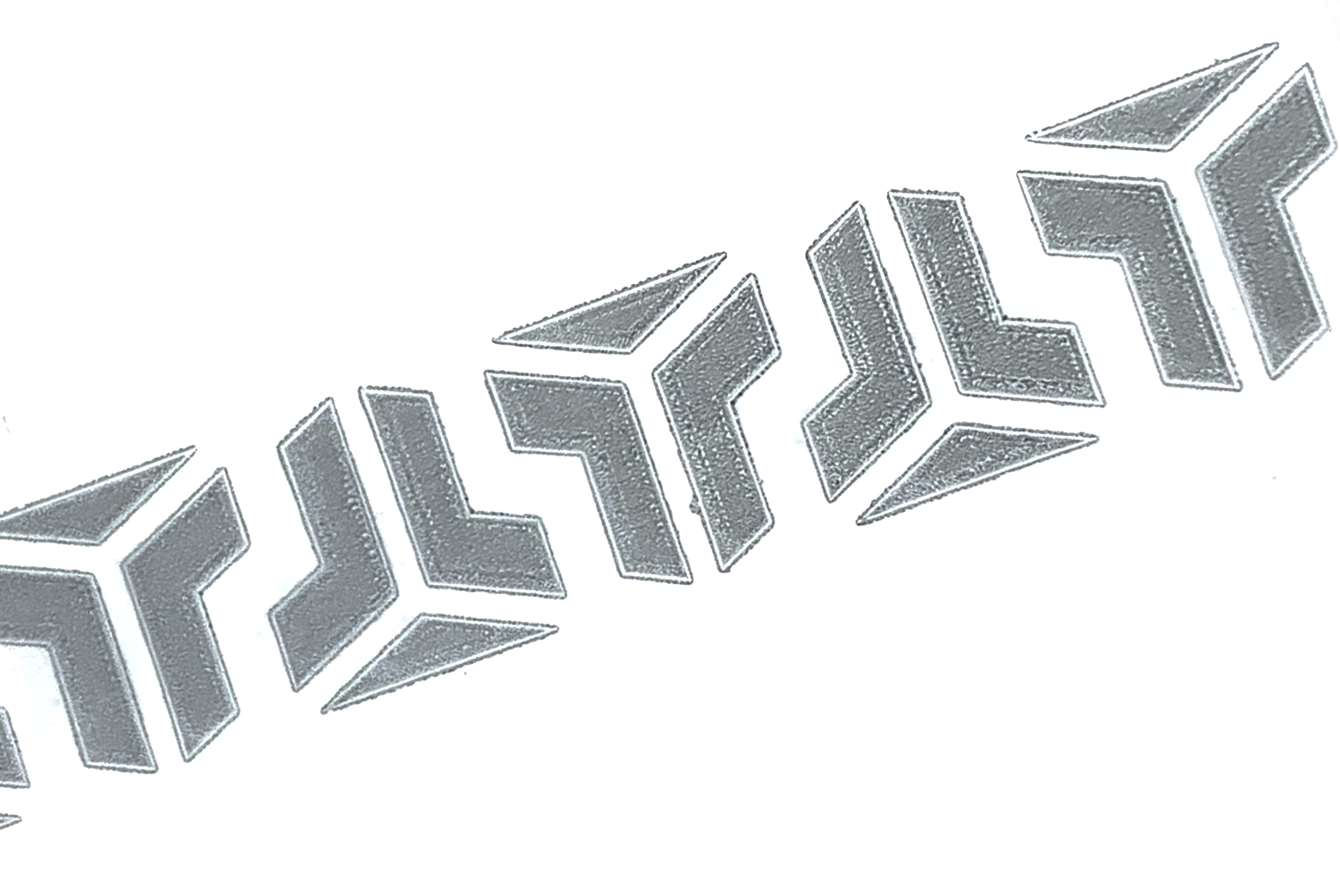 Vacuum bag and gray-patterned seal |
.png) BitBox02 Multi edition |
 BitBox02 Nova Bitcoin-only edition |
.png) BitBox02 Bitcoin-only edition |
Use the authenticity check in the BitBoxApp
The BitBoxApp automatically performs the Attestation Check using a device attestation key certified during factory setup. This helps detect counterfeit devices. A successful check does not prove that a genuine device has never been physically modified, so it must not override other reasons to suspect tampering.
Follow official setup instructions
Do not install software supplied by a suspicious sender or presented as files on the device. Never enter recovery words into a computer, phone, website, or application, and never use recovery words supplied with a device to create a new wallet.
If the bag is intact, the contents are complete, and you have no other reason to suspect interference, continue with the app check:
- Install the BitBoxApp from the official BitBoxApp download page, then open it. If you already installed it from that source, open your existing installation.
- Connect your BitBox02 to the BitBoxApp. The app performs the Attestation Check automatically before you unlock the device.
- Wait for the app to complete the check.
If an authenticity warning appears, the app cannot complete the check, or you are unsure of the result, stop and disconnect the device. Do not continue setup or transfer funds. Contact BitBox Support using the details listed below. The absence of a warning alone does not mean the check has completed.
When the check completes without an authenticity warning and no other concerns remain, follow the official BitBox02 setup guide.
For the technical background and the role of attestation, read How we mitigate supply chain attacks.
Contact BitBox Support if concerns remain
Do not continue setup or transfer funds while concerns about the packaging, device, or app result remain. Disconnect the device if it is connected.
Open the official BitBox Support contact form and include:
- your order number or the place and approximate date of purchase;
- clear photographs of the complete bag, its sealed edges, and the area that concerns you;
- whether you opened the bag, connected the device, created a wallet, or transferred funds; and
- the exact warning text or a screenshot of any authenticity warning, with unrelated personal information removed.
Do not include recovery words, a wallet backup, private keys, passwords, passphrases, PINs, or authentication codes. Support can help assess the reported signs and advise on the next step.
If you followed suspicious setup instructions, ran unknown software, or shared recovery words or a wallet backup, stop that interaction and follow What to do after interacting with a phishing attempt. Use the section that matches what you already did.