To receive ETH or a supported ERC-20 token from an exchange, another wallet, or another person, use your Ethereum receive address in the BitBoxApp. Verify the full address on your BitBox before sharing it, and make sure the sender uses the Ethereum network (Ethereum mainnet).
Before you begin
You need a set-up BitBox that supports Ethereum and the latest BitBoxApp. Bitcoin-only editions do not support Ethereum. The screenshots below show the desktop app.
For an ERC-20 token, first check that it is supported and enabled in the BitBoxApp. Follow Manage ERC-20 tokens in the BitBoxApp if you need to display its sub-account beneath Ethereum.
Choose Ethereum mainnet at the sender
The sending wallet or exchange must use Ethereum mainnet for this procedure. An address with the same format can also exist on other networks; the address alone does not identify the network. Assets sent on another network will not appear in the BitBoxApp's Ethereum account. If the sender's network choice is unclear, stop before sending. For a different network, first read EVM network compatibility with the BitBox02.
Receive ETH or an ERC-20 token
The following steps give you a verified destination for the payment. The transfer itself is initiated in the sending wallet or exchange, not on your receiving BitBox.
- Open the BitBoxApp, connect your BitBox, and unlock it. In the left sidebar of the desktop app, select the Ethereum account you want to receive into, or the token sub-account beneath it. The selected account's balance and transaction history appear.

- Click Receive above the transaction history. The receive screen opens with a shortened address preview and a Verify address on BitBox button.

- Click Verify address on BitBox. A verification window opens in the app with the full address, a copy icon, and a QR code, while your BitBox displays the address for comparison.
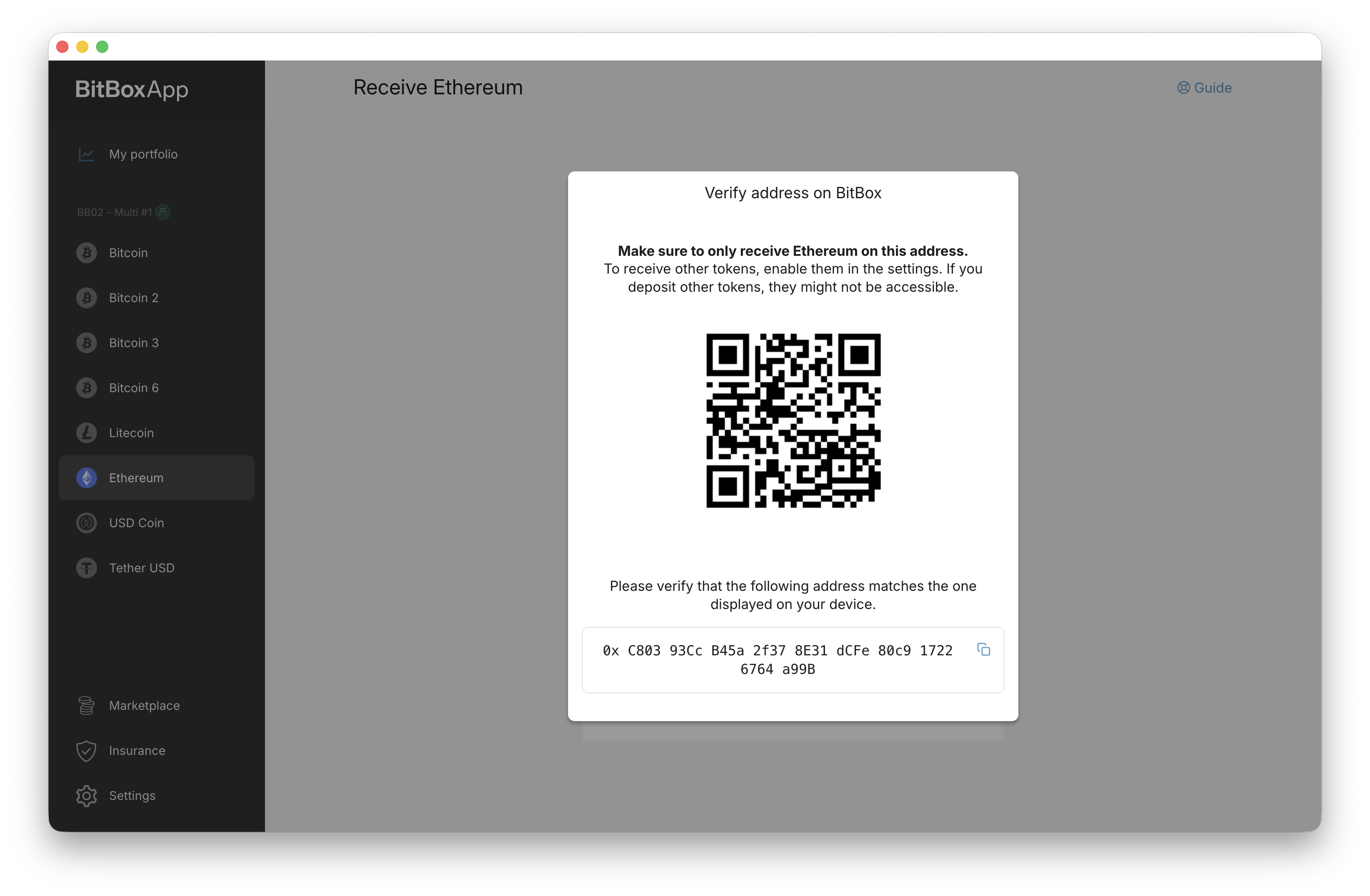
- Compare the entire address in the verification window with the address on your BitBox. Use the BitBox screen as the reference. If they differ, reject the verification on your BitBox and do not use the address.
- If the addresses match, keep the verification window open while you copy or scan the address. Click the copy icon at the right of the address field and paste the address into the sending wallet's recipient field, or let the sender scan the QR code. Check the resulting destination against the full address on your BitBox. If you are sending the address to another person, compare the address in your outgoing message with the device address; the sender should then check their wallet's destination against your message. Stop if any address differs.
- After copying or scanning and checking the destination, confirm the address on your BitBox. This closes the verification window. If you confirmed before copying, click Verify address on BitBox again and repeat the comparison before copying.
- In the sending wallet or exchange, check the asset, amount, destination address, and Ethereum mainnet network before submitting the transfer. If someone else is sending, ask them to make these checks.
Verifying on the BitBox helps detect an address replaced on your computer. It does not prevent malware from changing an address after you copy it, which is why checking the pasted or scanned destination matters. See the BitBox threat model for the security boundaries.
Check that the payment arrived
After the sender broadcasts the transfer and the BitBoxApp synchronizes, check the incoming payment in the Ethereum account or the enabled token sub-account. Compare the asset and received amount with what you expected, allowing for any withdrawal fee deducted by the sending service. Copying or verifying an address does not itself transfer funds.
If a payment has not appeared, first ask the sender whether the transfer has been broadcast and request its transaction ID and the network used. An exchange may still be processing a withdrawal. Do not repeat the payment simply because it is delayed.
If the app shows a connection error or an unexpected zero balance, update the BitBoxApp and check the supported devices and operating systems. For a token, also check that its sub-account is enabled. If the payment is still missing, or the sender used another network, contact BitBox Support with your BitBoxApp version, asset, network, and public transaction ID if available. Never send recovery words, wallet backups, or other wallet secrets.
Why the receive address stays the same
Each Ethereum account in the BitBoxApp uses one receive address. Its ETH and supported ERC-20 token sub-accounts share that address, and you can reuse it for later payments on Ethereum mainnet. To use a different Ethereum receive address, create a separate Ethereum account in the BitBoxApp.