If your Ethereum (ETH) or ERC-20 token transaction, initiated through the BitBoxApp, is taking longer than expected to confirm, it’s likely due to a low gas fee. Fortunately, you can speed things up by replacing the pending transaction with a new one that has a higher fee.
Prerequisites
Before proceeding, ensure you have:
- A BitBox02 Multi edition hardware wallet.
- The latest version of BitBoxApp installed.
- Its recommended to use Google Chrome or Brave browser.
- If you are using a different browser, the BitBoxBridge must be installed:
- Rabby Wallet extension installed and set up.
Note: If you're new to Rabby, please follow our guide on How to use your BitBox02 with Rabby.
Steps to Speed Up Your Transaction
Once you have installed and set up Rabby, you can speed up a stuck transaction by creating a new transaction with the same nonce:
1 Open Rabby Wallet
- Launch the Rabby extension in your browser.
2 Initiate a New Transaction
- Click on "Send" to start a new transaction.
.jpeg)
3 Enter transaction details
- Input the same recipient address and amount as the stuck transaction.
- Click "Send" to proceed.
.jpeg)
4 Where to adjust gas settings and nonce
- On the next screen, click on "More" in the Gas section.
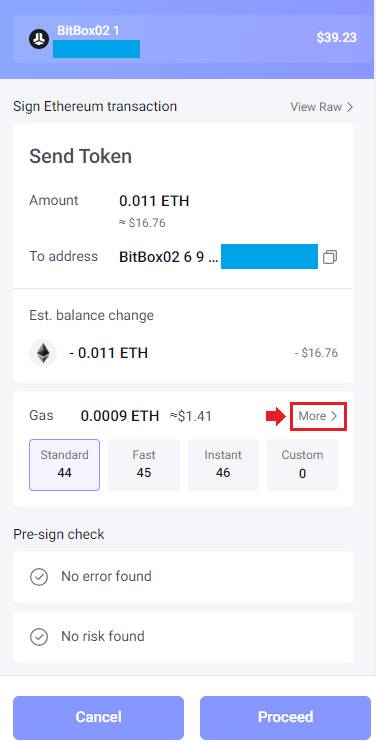
- Locate the "Nonce" field.
4.1 Where to find the necessary “Nonce”
To find the nonce of the stuck transaction:
- To view the transaction in the explorer, go to the transaction details in the BitBoxApp, copy the transaction ID (hash), and search for it on etherscan.io — or simply click on “Open in external block explorer,” which will open the transaction directly in Etherscan.
.jpeg)
- In the explorer, go to the “More Details:” section and click on “Click to show more.”
.jpeg)
- Under the “Other Attributes:” row, you’ll find the required Nonce.
.jpeg)
4.2 Adjust gas settings and nonce
- Enter this nonce value into the "Nonce" field in Rabby.
.jpeg)
- Select a higher gas fee option (e.g., "Fast" or "Instant") to increase the likelihood of prompt confirmation.
5 Confirm the Transaction
- Click "Confirm" in Rabby.
- On your BitBox02 device, verify and confirm the transaction details, ensuring the address, amount, and fee are correct.
6 Finalize the Process
- Click "Proceed" in Rabby to send the transaction.
- The new transaction, with the same nonce and higher gas fee, will replace the pending one.